Live Pins
Select any screen region and keep it visible in its own lightweight window.
LIVE SCREEN PINNING FOR MAC
LiveFramePin Studio turns selected screen areas and app windows into live, movable pins. Keep a stream, dashboard, code review, or reference visible while you work.
ONE CLEAR JOB
Choose the part of your screen that matters, then keep it live without turning your desktop into another complicated application.
Select any screen region and keep it visible in its own lightweight window.
Pin a chosen area from one app window with a dedicated capture source.
Restore saved pin layouts and control opacity per pin when the desktop gets busy.
Freeze a frame, draw or type over it, and restore the annotated snapshot later.
WHERE IT FITS
Pin the changing part of your Mac screen instead of constantly switching windows.
Keep a stock chart, crypto price, or live dashboard nearby while you work.
Watch CPU, memory, disk, or network activity without opening Activity Monitor again and again.
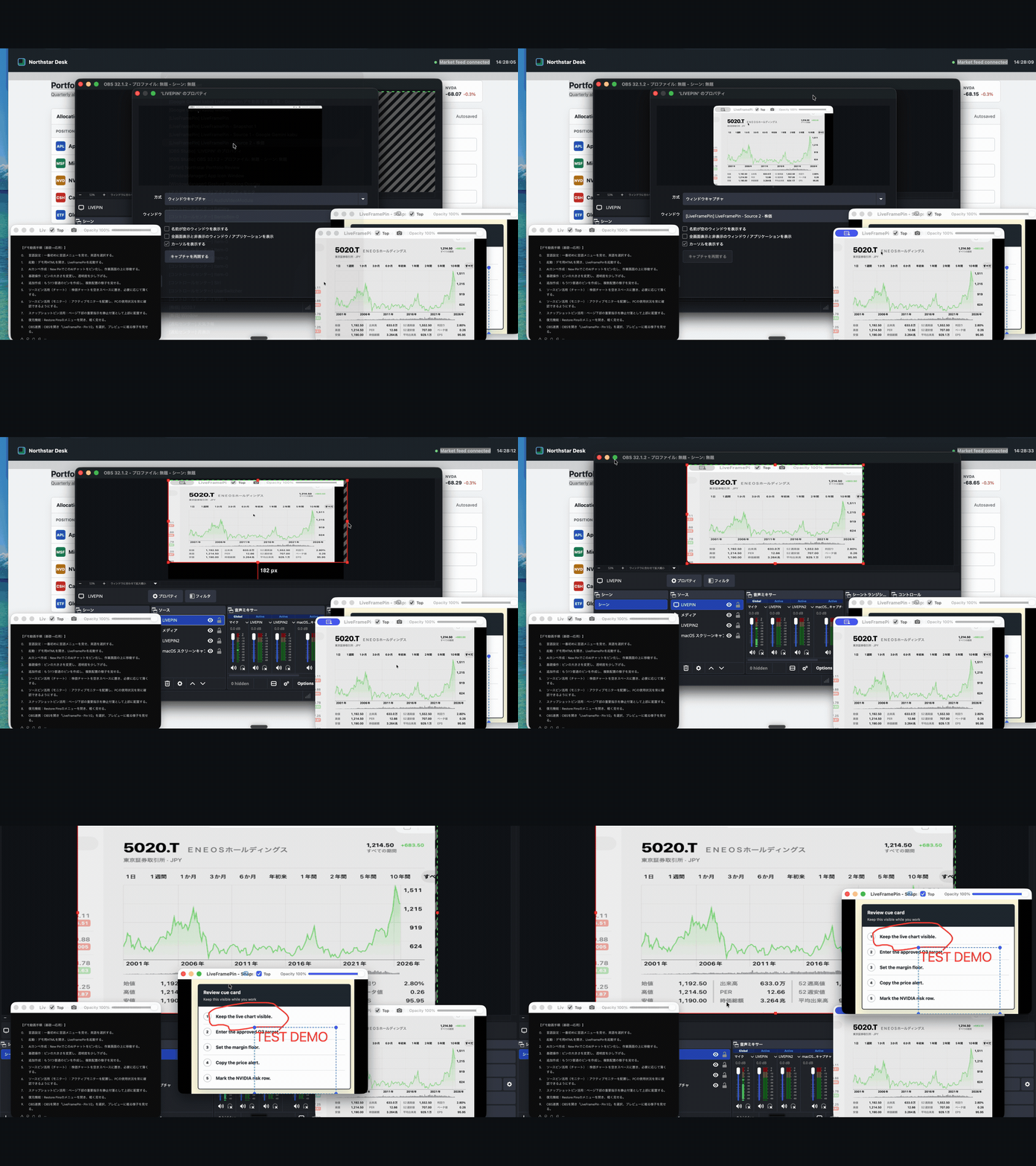
Use individual pin windows as clean capture sources for streams and recordings.
Float a reference, timer, chat, or tutorial over your workspace with adjustable opacity.
Keep logs, docs, AI chat, or code review context visible beside your editor.
SEE THE WORKFLOW
Real captures from LiveFramePin, shown without mockups.
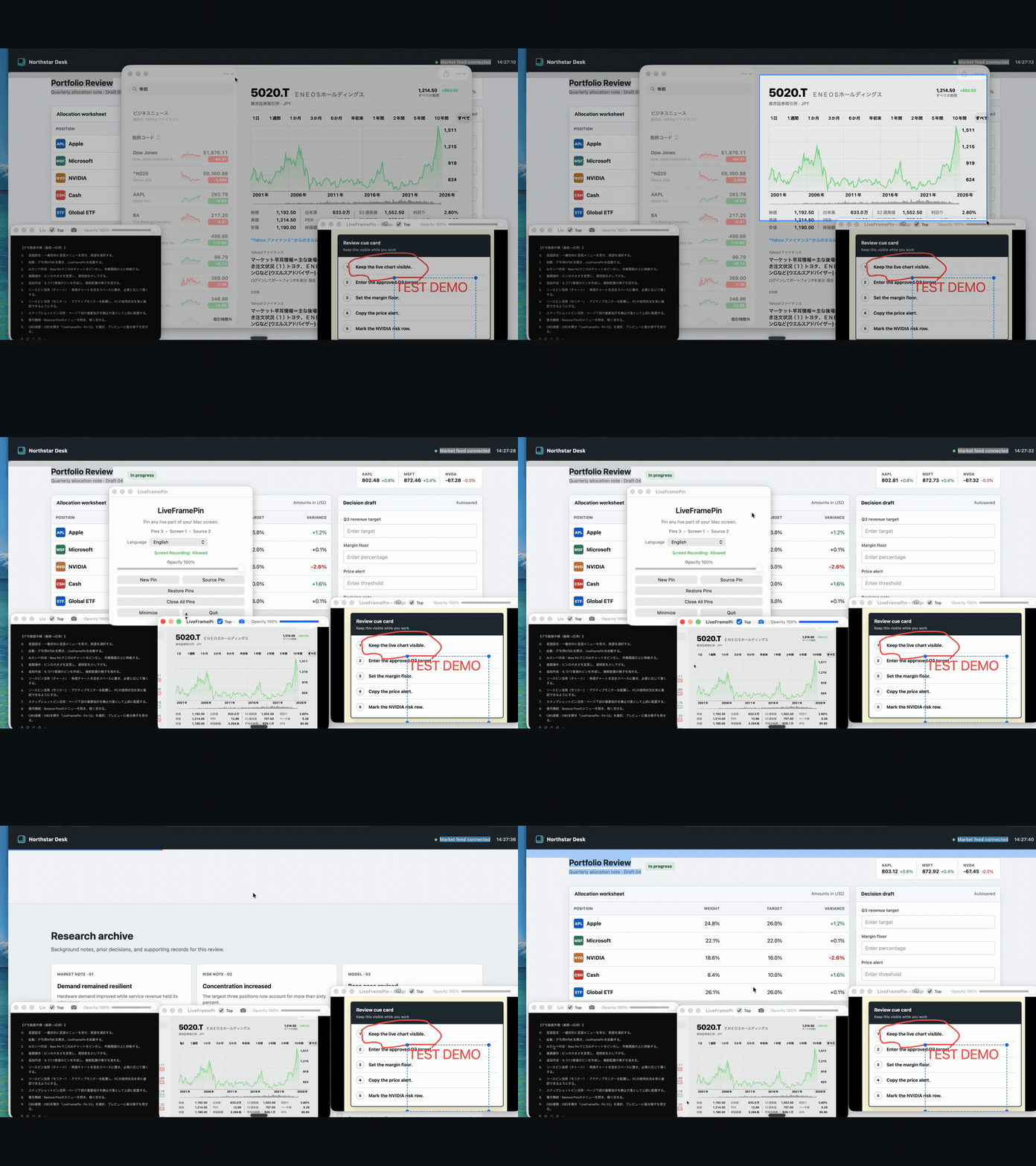
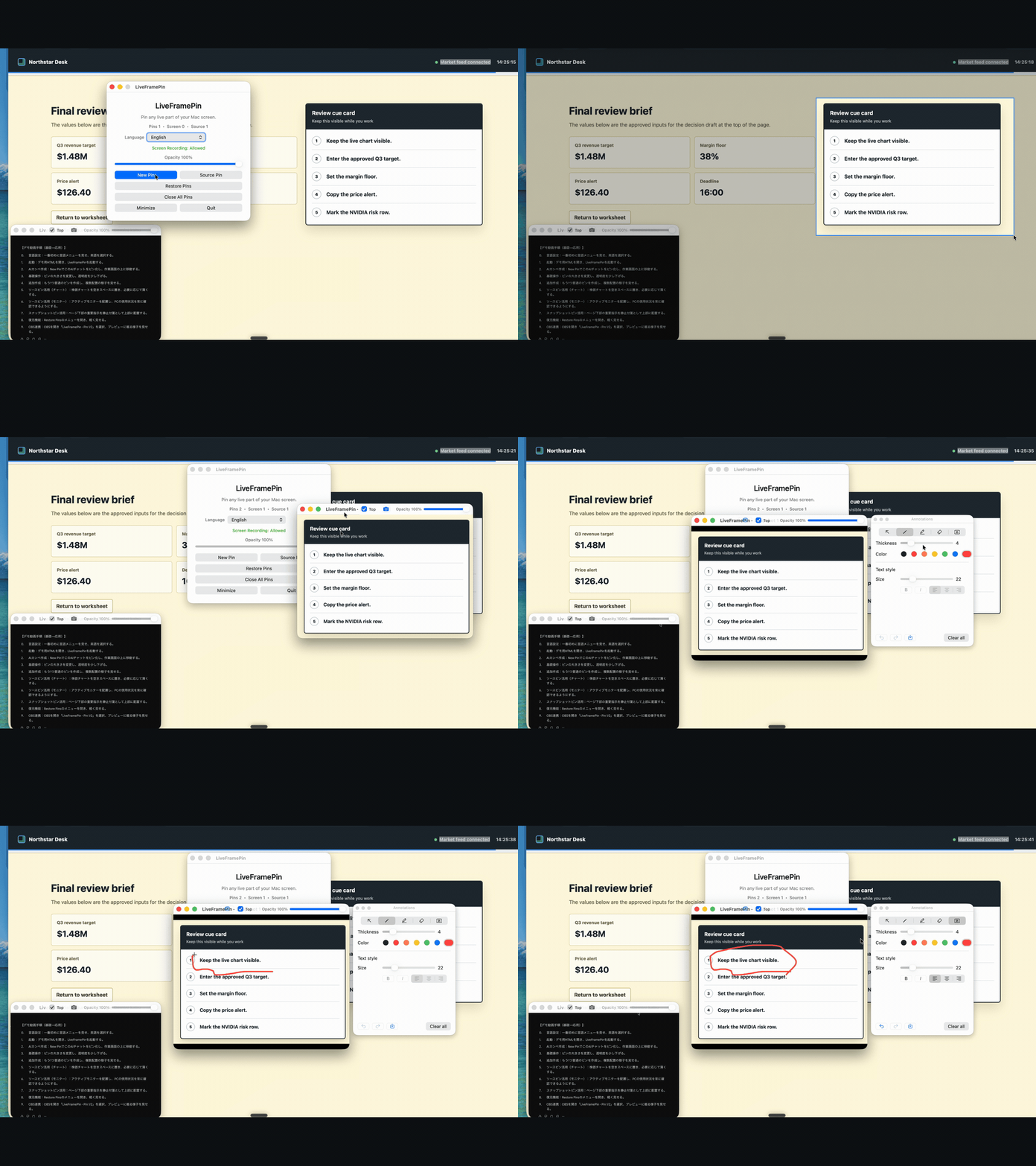
TWO WAYS TO PIN
Use it for references, live dashboards, chat, tutorials, and anything else on screen.
Choose the target app first, then frame the exact portion you want to follow.
BUILT FOR LIVE WORK
Each pin is a distinct macOS window. In OBS, select the pin you want as a window capture source and compose your scene with the same live view you use on your desktop.
LIVEFRAMEPIN STUDIO
Studio is the complete LiveFramePin workflow for people who keep live information in view.
US$39
One-time purchase. Personal use on up to two Macs.
Secure checkout will be connected before public release.
QUESTIONS
Live Pins are displayed locally and are not automatically uploaded or shared. Snapshot Pin images and annotations are stored on your Mac so Restore Pins can bring them back.
A Source Pin needs its target window to remain available to macOS capture. If the app is minimized, hidden, or moved to a Stage Manager state that stops capture, the pin pauses until the source returns.
Yes. Pins appear as separately named macOS windows, so you can choose an individual pin in OBS window capture and build scenes around it.
A Studio license is for personal use on up to two Macs.
Refund requests are accepted within 14 days of purchase when LiveFramePin does not work as described and support cannot resolve the issue.
LiveFramePin requires macOS 14 or later and Screen Recording permission. The app explains why that permission is needed before you create pins.
DRM-protected or restricted content may appear black or fail to capture because of macOS or content-provider restrictions. LiveFramePin does not bypass those protections.
This sales page is ready for the Studio launch. Connect the secure checkout URL here before publishing it publicly.